
Welcome our new feature in SmartGit 26.1, Overlap.
Many of our features have a somewhat direct counterpart in the Git CLI. Some stray from the trodden path, such as the Graph View or the Interactive Rebase, but they do not try to hide the fact that they share a lot with their character-based siblings.
Overlap adds another exception to this rule, and that immediately presents a problem: What is this thing no one knows anything about, why is it here, and how do I get back the horizontal space occupied by these weird symbols?
Hang on for the answer to the last question, but hopefully I can convice you to give Overlap a try.
Thinking outside the DAG
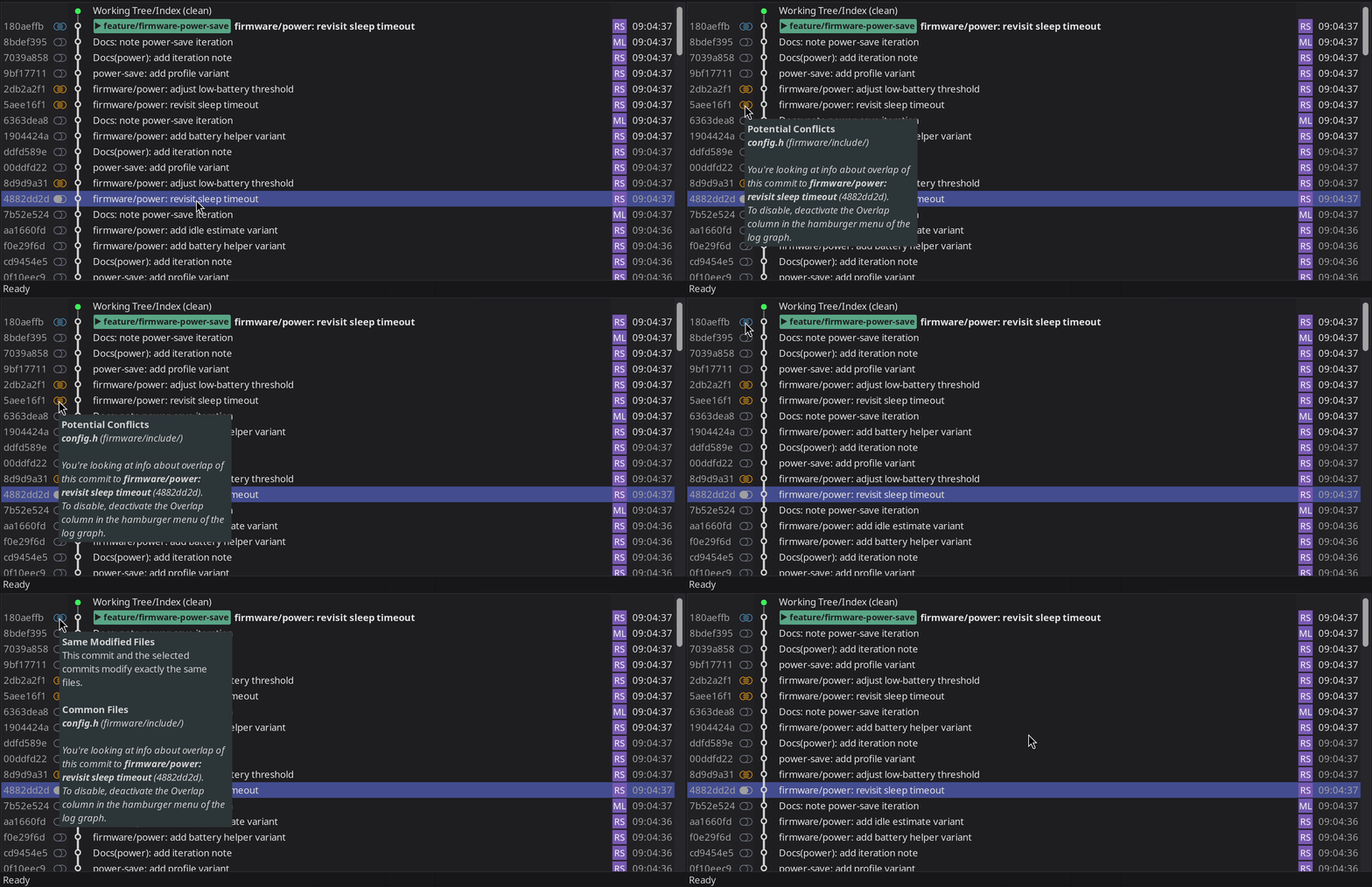
Overlap is a small, fixed-size column located before the commit message in the Graph View, built to add another dimension to your view of the repository. Where the Graph displays the dependencies between commits based on the Git DAG (i.e. the flow of commits and their ancestors, or Directed Acyclic Graph), Overlap displays dependencies between commits based on changes.
In a version control system based on patches, for example Pijul, this information is easy to come by, because changes are what's being tracked.
Contrast that with Git, which tracks the contents instead.
That's why certain operations in Git which are properties of the underlying data model - the git DAG - are fast and efficient. Other operations, such as rebasing commits, are not directly part of this model and therefore aren't readily available. As a consequence, they require quite a bit more computation, are therefore harder to come by, and can be too slow for interactive use.
git help overlap
Overlap tries to close this gap by providing information about the dependency of changes.
A simple example
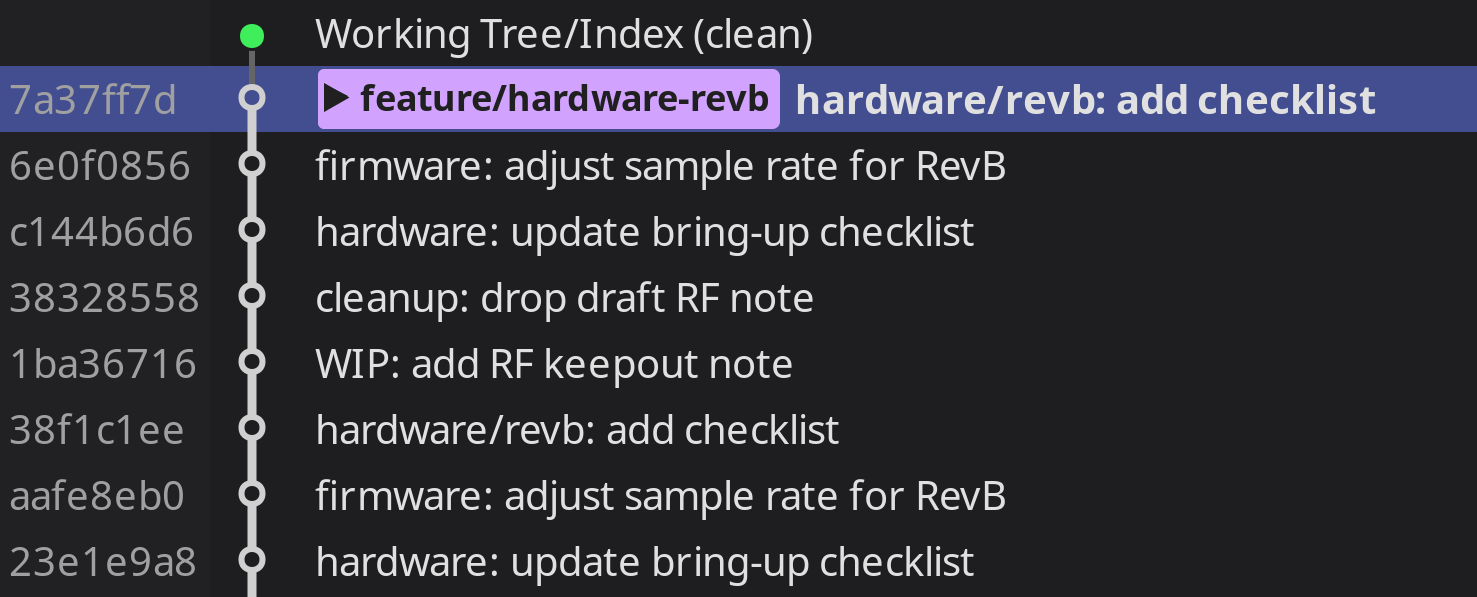
Consider the branch from the image, or likewise the output from git log. The branch is as clean as can be, completely linear. You can quickly see who has made the commit, when it was made, and what its ancestors are. However, apart from the commit messages, there's no indication whatsoever what the changes were in each of the commits, let alone how they relate to each other.
This is where Overlap comes into play. For a selected commit, it shows you how the other commits relate to your selection.
With Overlap
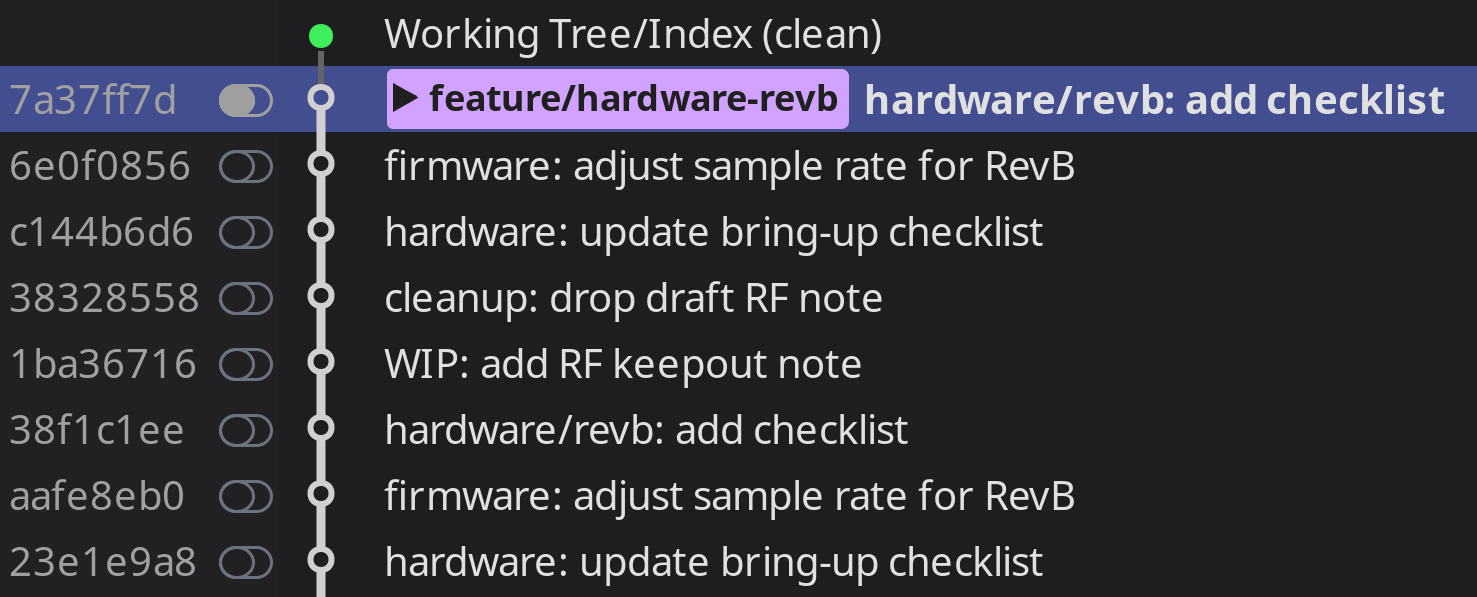
How… exciting?
Indeed it is. Hear me out. These empty pills, they carry some weight, because it means that the commit they belong to doesn't share any modified file with the selected commit. If that sounds boring to you, how about knowing to be able to move that selected commit around in this branch with confidence that there won't be a merge conflict waiting for you? I don't know about you, but I'm not such a big fan of merge-conflict surprises.
But of course, empty pills is not everything Overlap can show.
Finding that Overlap
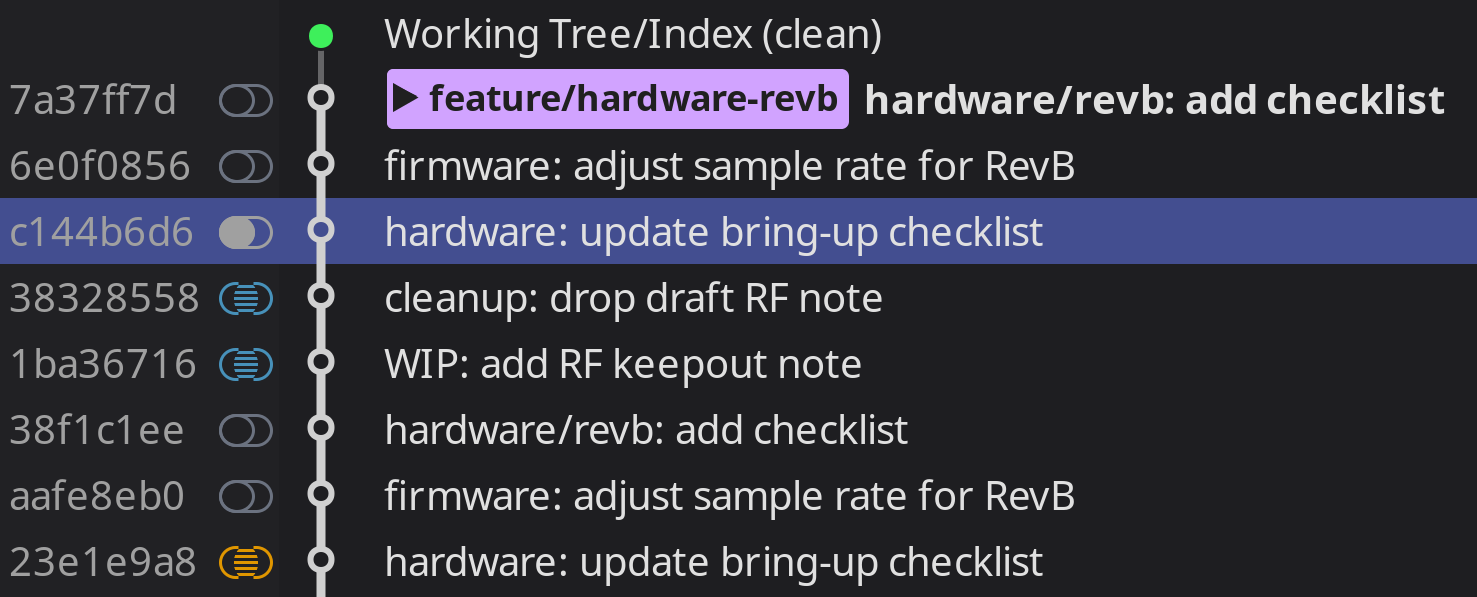
Now that looks a bit different. But it tells you quite a few things.
First, the selected commit c144b and the commit at the end, 23e1e, share edits, meaning it will definitely result in a conflict trying to move one past the other. Additionally, it tells you that 38328 and 1ba36 change at least some of the file(s) of the selected commits changes, but also that these changes do not conflict with c144b. That can be nice to know, maybe you want to squash those commits, or maybe one of those commits shouldn't overlap with the other and should be split up first. Overlap doesn't make that call, it merely is a tool to help you inspect history.
Still sounds strange? Trust us, once you're using it for a while it becomes second-nature.
Your flashlight for exploring branches
This feature being quite new means we ourselves are only using it for a while now, and as such we surely haven't come across every usecase just yet. But to name a few we've discovered so far:
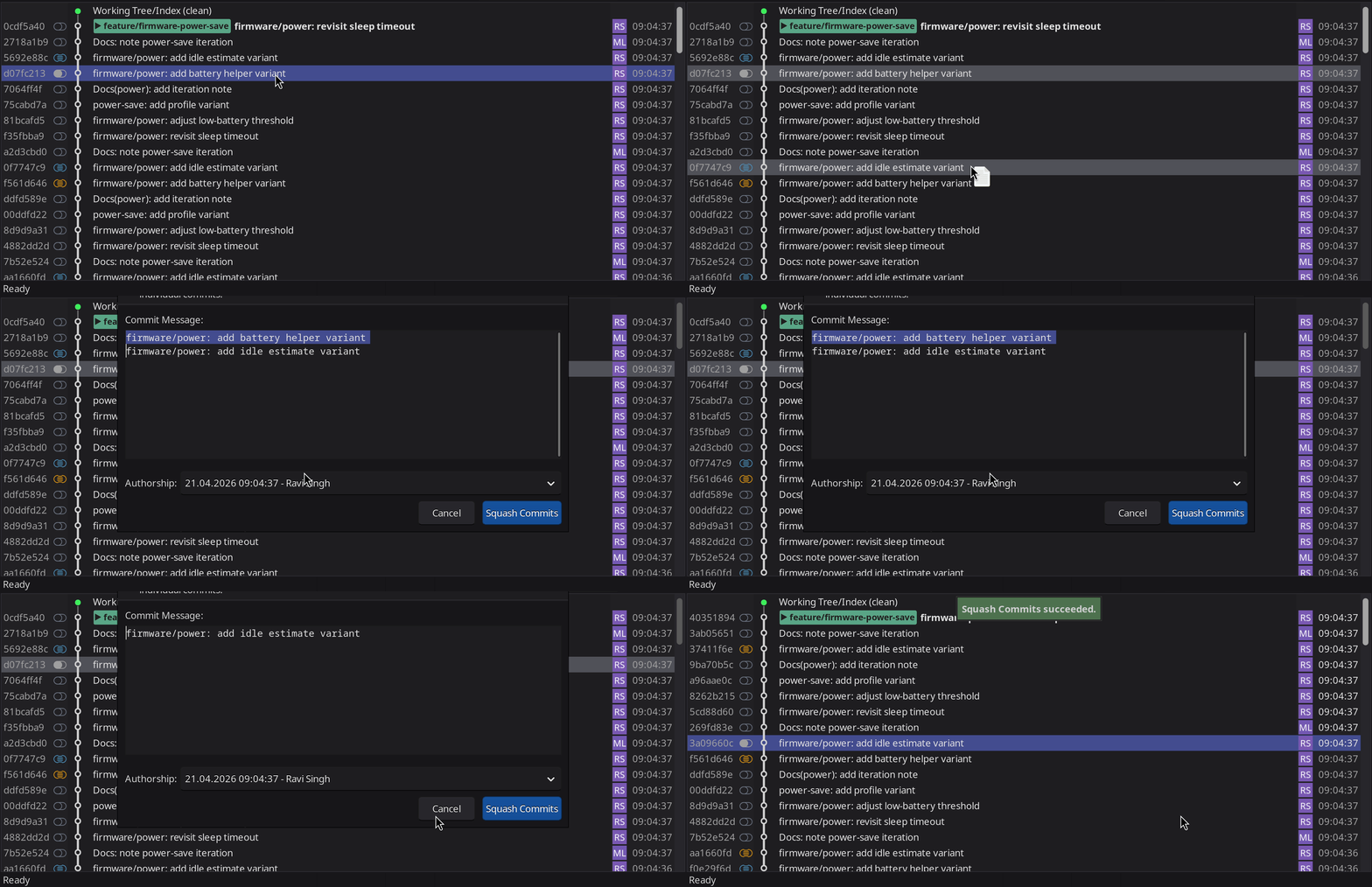
- Getting a feel for a branch.
- Which are the most interesting commits?
- Are the changes separated, or is it more of a zig-zag across files?
- Detecting potential problems.
- Are there changes in commits which should be split off?
- Do some commits modify exactly the same files and should be squashed together?
- Can the commits be re-ordered to strengthen their story?
- As a helper when cleaning up.
- When re-ordering commits, where can I move the commit without getting conflicts?
- When splitting off modifications, where do the changes probably belong?
- For spotting conflicts.
- The tooltip shows potentially conflicting files without requiring another step.
- As an essential addition to SmartGits powerful Drag&Drop operations.
- Drag&Drop commits with confidence and let unexpected conflicts be a thing of the past.
There's probably plenty of other uses as well. What's your favorite use-case? We'd love to read your story!
Getting rid of it
If you're still not convinced, and want to reclaim your precious horizontal screen real-estate, go to hamburger menu (the three horizontal lines in the top right corner of the Graph) Columns | Overlap, or set the low-level property log.graph.overlap.enabled to completely remove Overlap, even from that menu.
Advanced Topics
-
Multiple commits
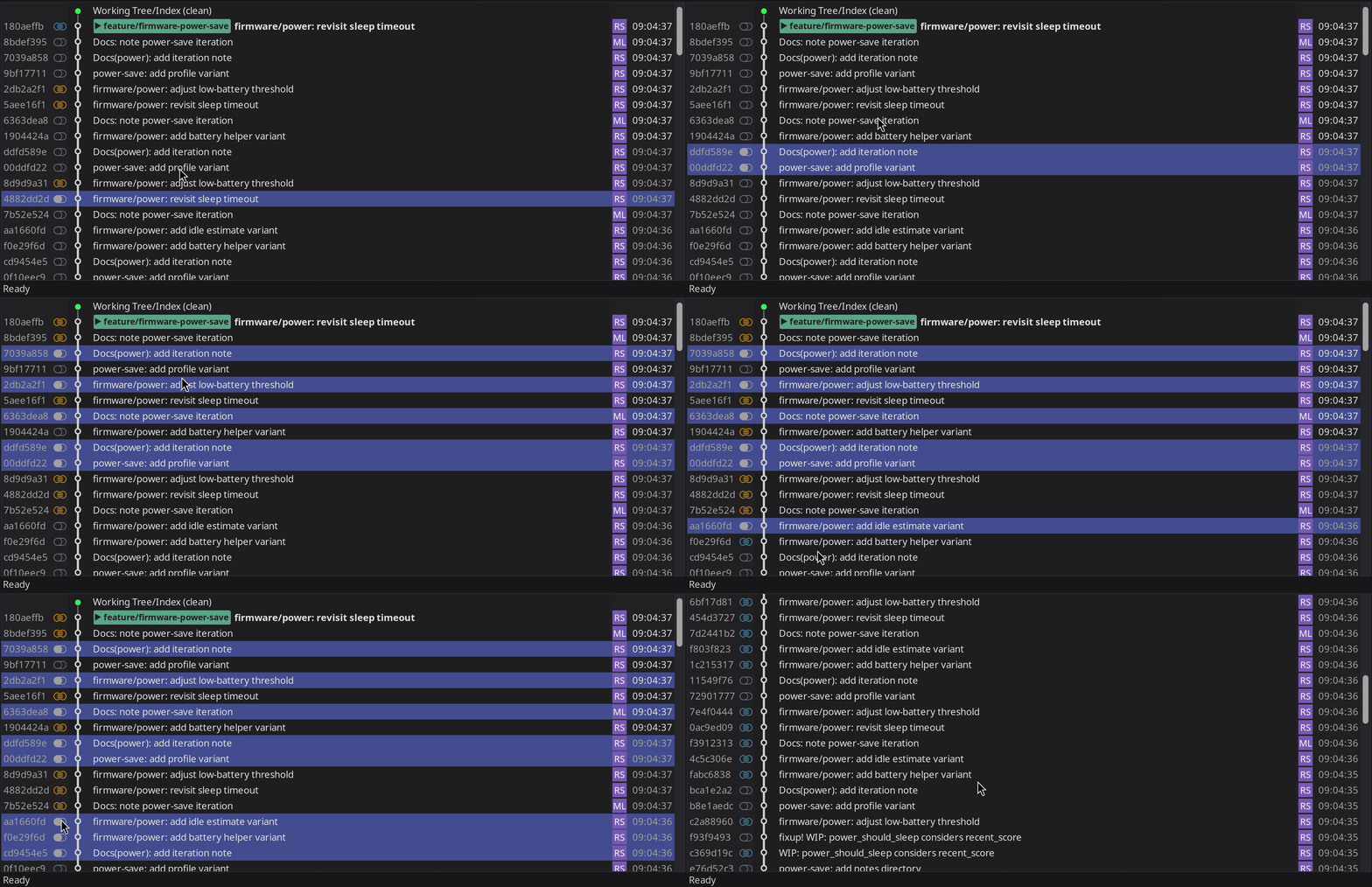
The way overlap is built, you're not restricted to one selected commit. Feel free to select multiple and see the combined overlap information, which can help you discovering hotspots, potential split-points and more.
-
Zoning in
You can select any selection of commits and fix the overlap display on this set. This can be handy if you really want to dive into a specific area.