
Just a few days before we travelled to Berlin for WeAreDevelopers, my colleague Willi created something completely new. It is called Commit Overlap.
And it is amazing. At that time, I had already learned that the Graph shows me how commits and branches are connected. But Commit Overlap adds another dimension: it shows me which commits are connected through the content they change.
My simple Git-newbie explanation: The Graph shows me how commits are connected in the history. Commit Overlap shows me where their changes touch each other.
How Does Commit Overlap Work?
First, I select or pin one commit as my comparison commit.
In this screenshot you see my Marketing repo. Attention: this is a screenshot made in SmartGit 26.1.
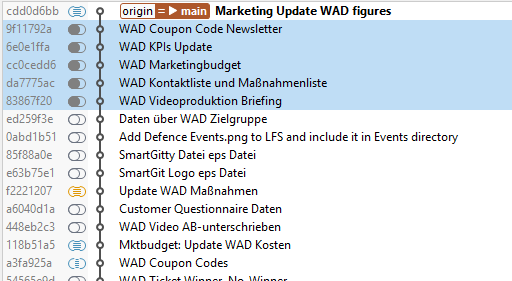
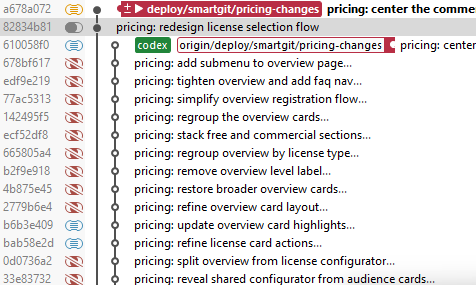
SmartGit compares other commits with my selected commit and displays the result in the Overlap column. I can immediately see whether they modify completely different files or whether their changes affect the same areas of the project.
SmartGit distinguishes between different levels of overlap:
- No overlap: The commits do not modify any of the same files.
- Slight overlap: They modify a few of the same files.
- Heavy overlap: A large part of their modified files overlaps.
- Subset: The files changed by one commit are all included in the files changed by the comparison commit.
- Superset: The commit changes all the files from the comparison commit - and some additional ones.
- Equal set: Both commits modify exactly the same files.
Important: modifying the same files does not automatically mean that the commits contain the same changes or will definitely cause a conflict. It is an indication that I should take a closer look. The tooltips give me more details, such as which files the commits have in common and where potential conflicts may occur.
What Do the Colors Mean?
To make the levels more understandable we use colors in SmartGit to make it more visible. Luckily, their meaning is quite easy to remember:
- Grey means that the commits do not modify any of the same files - so there is no overlap.
- Blue means that the commits modify some or all of the same files. The different symbols show whether the overlap is slight, heavy, a subset, a superset or the same set of files.
- Yellow means attention: the commits change at least one same place and therefore usually cannot simply be reordered.
- Red means that SmartGit expects a possible conflict - for example, when rebasing the feature branch.
My Git-newbie translation: Grey means separate, blue means related, yellow means take a closer look and red means a conflict may be waiting for me.
Why Is This So Helpful?
Without Commit Overlap, I would have to open commits individually and compare their changes to understand whether they are connected. Commit Overlap gives me this information directly in the Graph. It helps me answer questions such as:
- Do these commits belong together?
- Should they perhaps be squashed?
- Can I safely reorder them?
- Are upstream changes touching the same files as my work?
- Could a conflict appear later?
For me, it is a kind of early-warning system. Commit Overlap does not wait until Git presents me with a conflict. It shows me much earlier where different changes may get in each other’s way. This is especially useful when several people are working on the same project. I can see where my changes overlap with someone else’s work before we try to integrate everything.
And from my Git-newbie perspective, that is exactly what makes SmartGit so valuable: It does not only show me that something happened. It helps me understand what it could mean.
Something completely new became one of my favorite SmartGit features very quickly.